VM paused and datastore full: do not delete the VMDK
Recover an ESXi VM when its datastore fills: stop unnecessary growth, create usable capacity and protect the snapshot chain.
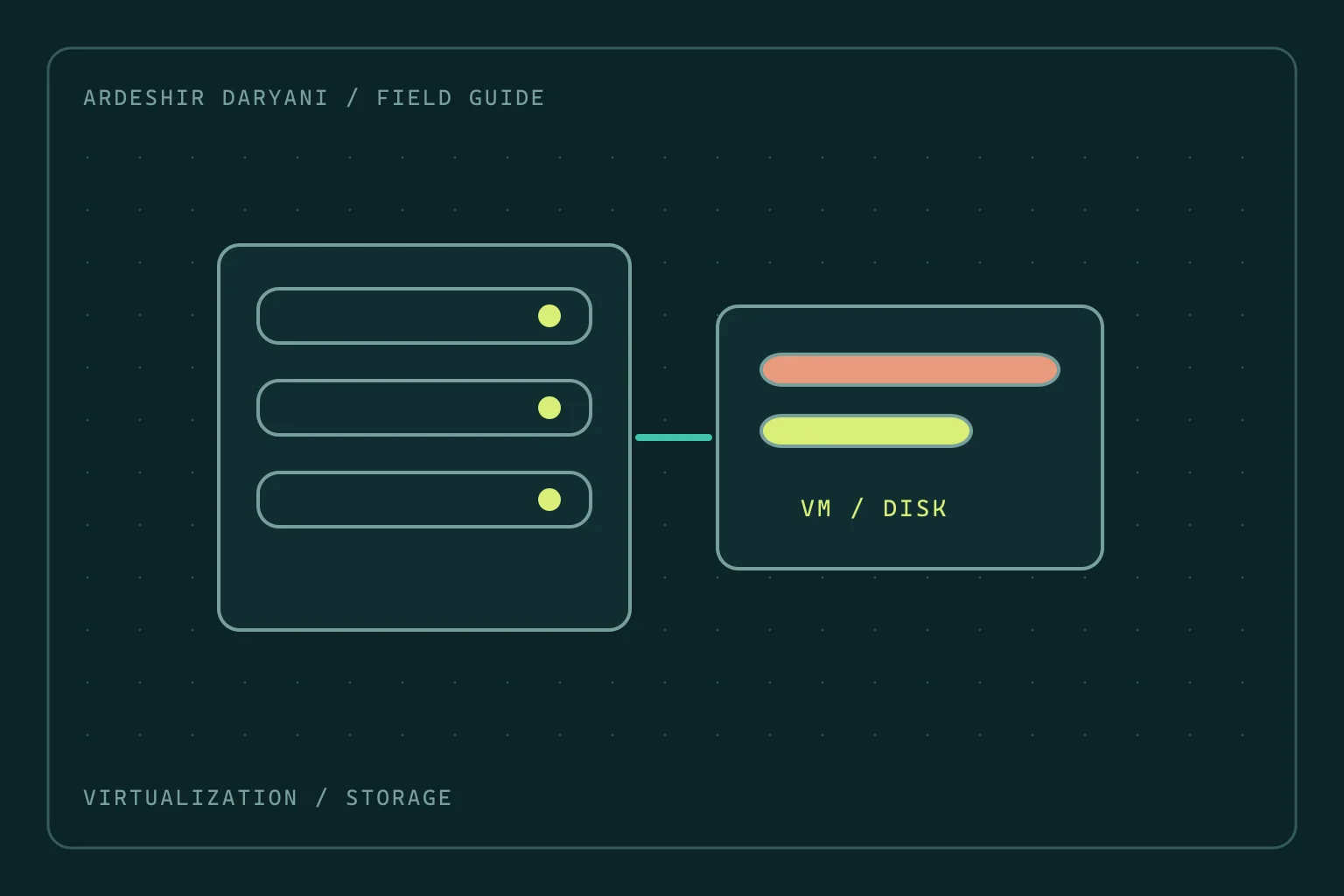
Critical situation: The company’s main application is unavailable. vCenter still shows the VM as powered on, but displays There is no more space for virtual disk. The guest operating system reports free space, a discrepancy that can misdirect the investigation.
Establish the problem boundary
This guide concerns insufficient capacity on ESXi VMFS or NFS datastores. Disk failure, file locking and vSAN capacity require separate diagnoses. Record the datastore holding the affected disk, its free capacity, the snapshot list and any active backup task. Free space inside the guest does not establish free space at the host storage layer.
Prevent the situation from getting worse
Stop creating new snapshots and starting nonessential work that consumes the same datastore. If backup software is running, stop or cancel it through that product’s supported procedure; do not blindly kill its process. Consider the risk to other VMs sharing the storage.
Do not manually delete VMDK, delta or sesparse files in Datastore Browser. A snapshot can be part of the current virtual disk. A small file or an old-looking name does not prove it is unused.
A practical recovery path
First create real, usable capacity: expand the underlying storage and then the datastore, or move verified, unattached files such as an old ISO elsewhere. Before deleting an ISO, check its VM attachments and operational purpose. Storage vMotion may also be considered when destination capacity and conditions permit; success on completely full storage is not guaranteed.
After creating sufficient headroom, review the VM message and use Retry for that same out-of-space error. If the message changes or I/O errors remain, change the diagnostic path. A successful Retry is not the end; identify why capacity grew.
Snapshot deletion or consolidation through management tools is a subsequent planned task. It can require additional working space; do not start it on a completely full datastore. Snapshot Delete and Revert are different operations: Revert returns disk state to an earlier point.
How to confirm recovery
Using an authorized account, perform a low-impact application operation and verify reads and writes. Watch datastore capacity, backup tasks and storage errors at the same time. My recommendation is to assign capacity and snapshot-age alerts to a named owner; an unowned alert is little help during an overnight incident.
The recovery decision: Create usable capacity first, then manage the disk chain through supported tools. Restarting the host does not free datastore capacity.
Technical references: Broadcom / Disk space · Broadcom / Snapshots.
Continue reading
All posts →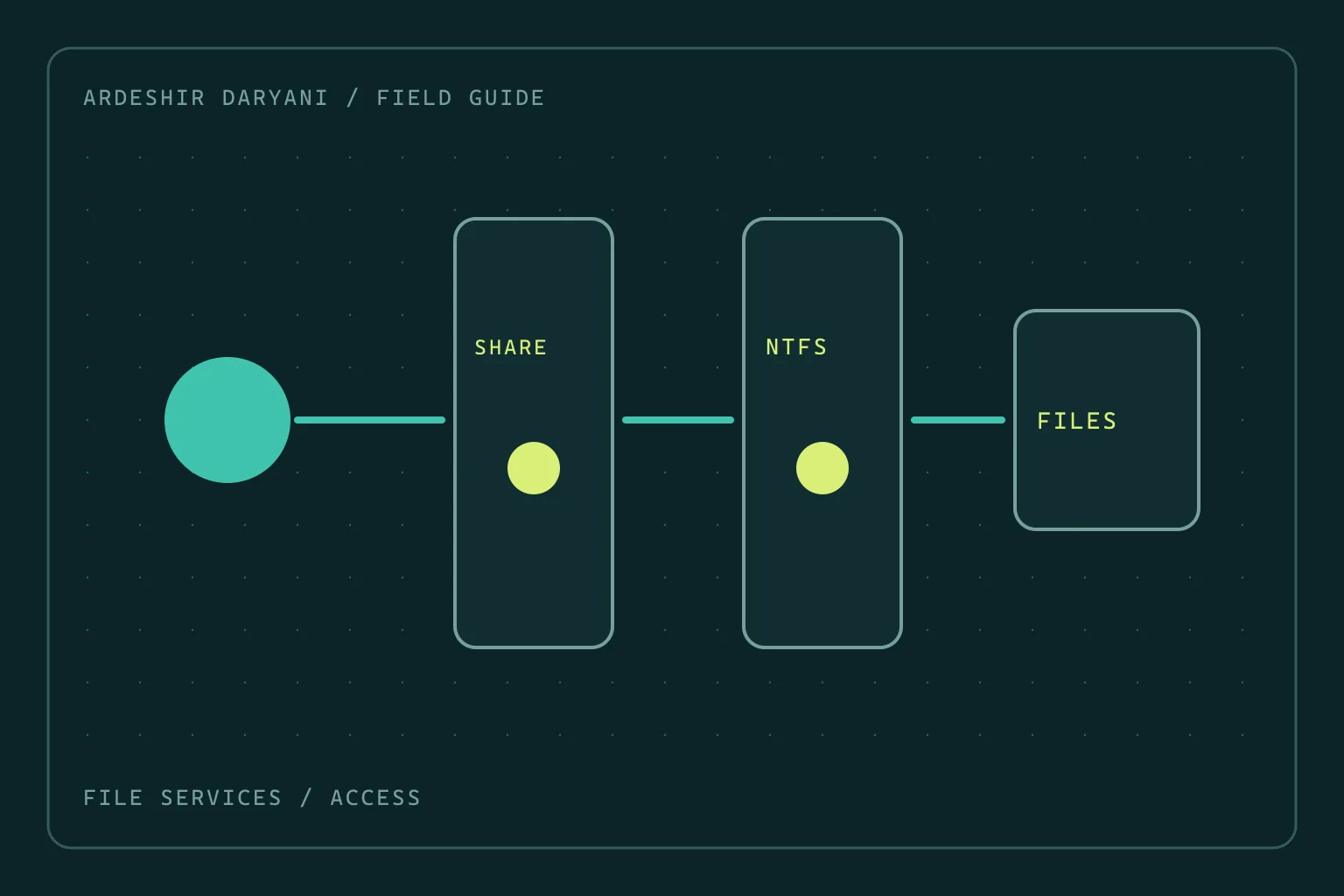
SMB access denied: do not grant Everyone full control
Restore SMB access after permission changes by distinguishing share and NTFS rights, making a narrow correction and testing as the actual user.
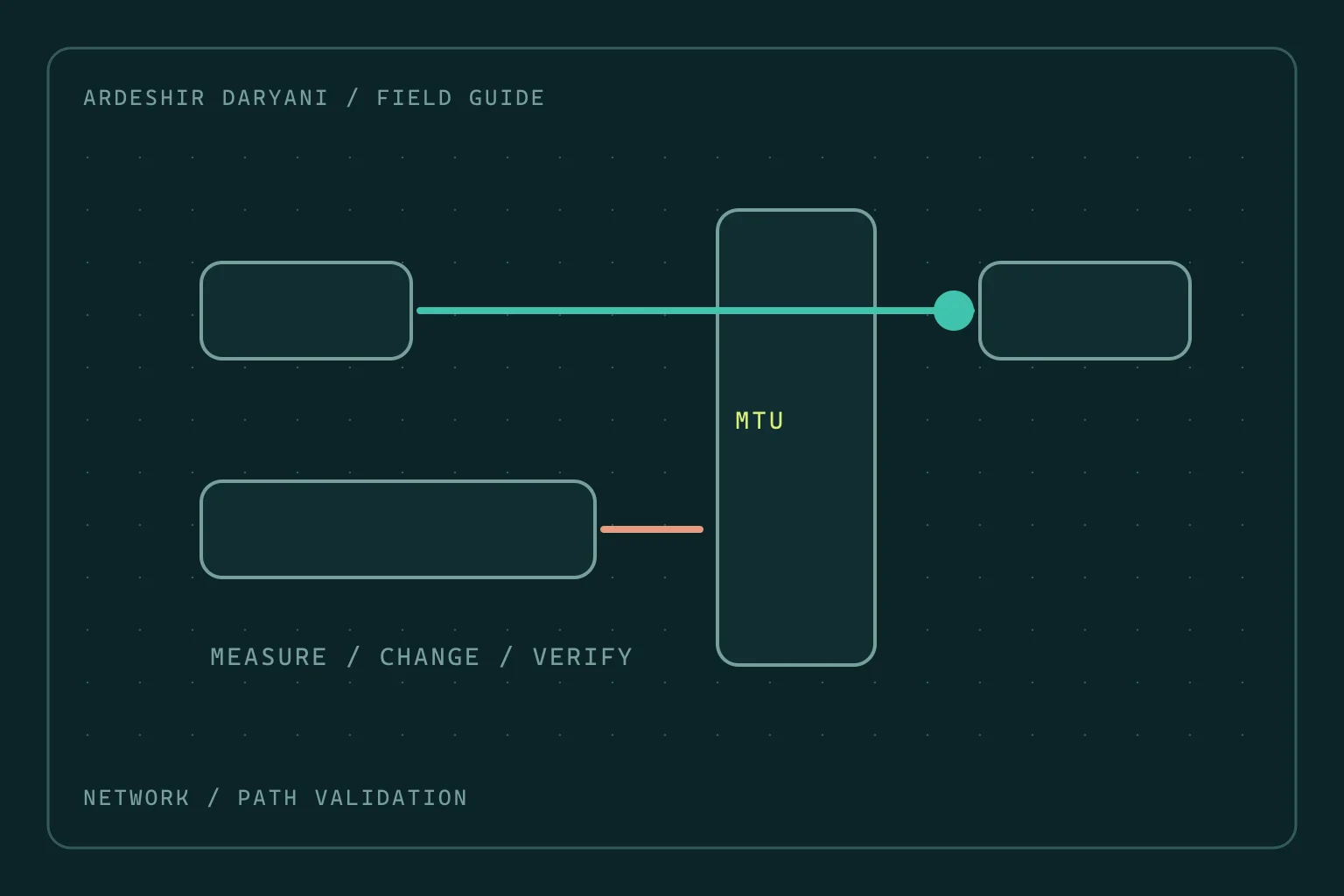
VPN connects but large transfers stall: investigate MTU
When small requests work but large transfers stall, test the MTU hypothesis with evidence rather than changing the entire network at random.
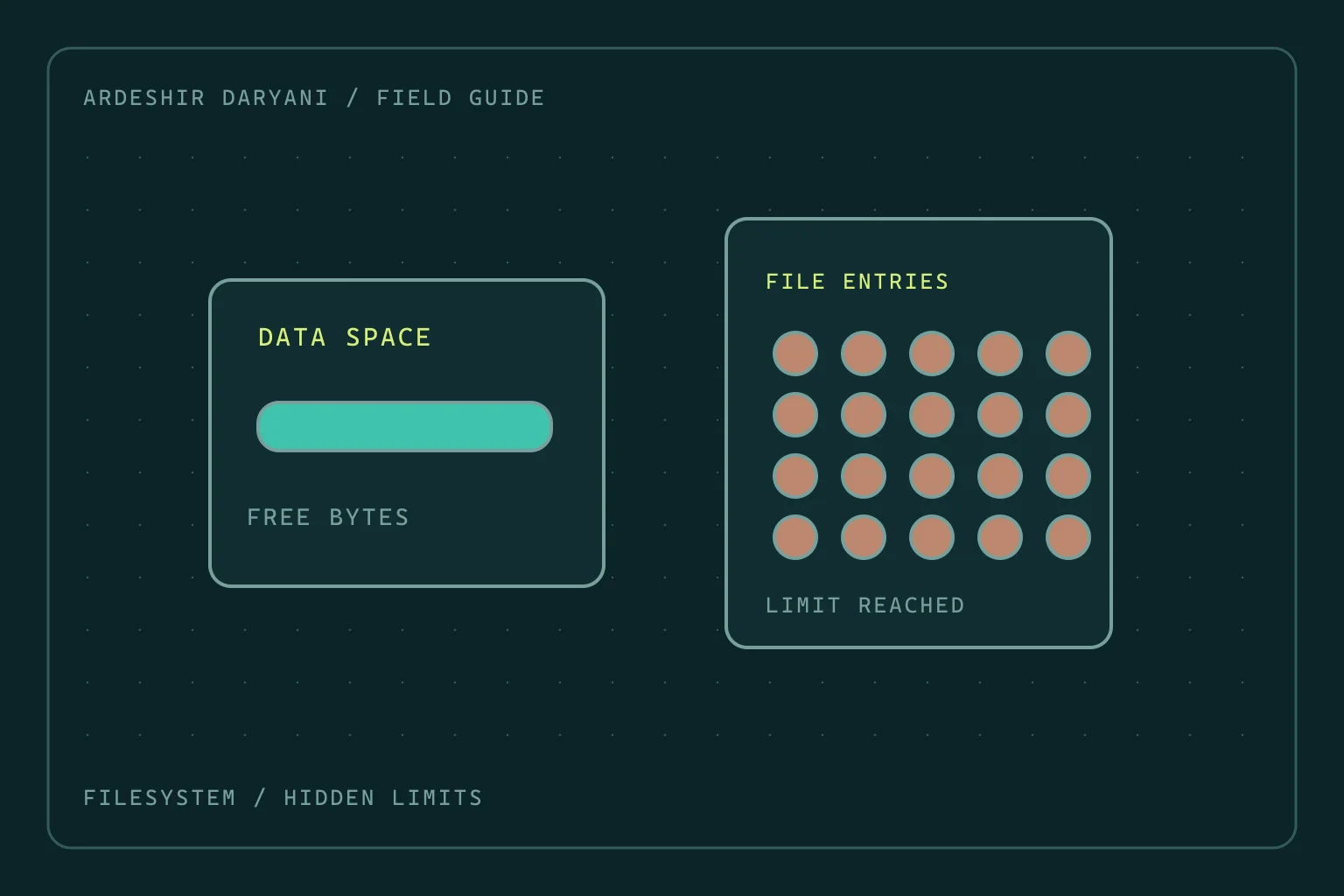
Disk space remains, yet Linux reports no space left
Diagnose inode exhaustion and deleted-but-open files on Linux without indiscriminate cleanup or restarting every service.